
Belkin Thunderbolt 4 Pro Dock Review (2025): The Ultimate Creator-Class Hub
A premium 15‑port Thunderbolt 4 dock with 2.5GbE, 90W host charging, and dual‑4K/60 support — built for Mac and Windows power users who juggle big displays, fast storage, and pro audio.

What Exactly Is a Thunderbolt Dock?
Before diving into the Belkin review, let’s establish what a Thunderbolt dock is and why it has become an essential tool for so many professionals. Think of a Thunderbolt dock as a central nervous system for your desk. Modern laptops, in their quest for thinness and portability, have shed most of their ports, often leaving you with just a few USB-C or Thunderbolt connections. This is where a dock comes in.
At its core, a dock solves the port scarcity problem. It takes the single, powerful Thunderbolt connection from your laptop and expands it into a vast array of ports—USB-A for your keyboard and mouse, Ethernet for stable internet, HDMI or DisplayPort for monitors, an SD card reader for your camera, and audio jacks for headsets. But a true Thunderbolt dock is much more than a simple USB-C hub.
Key Benefits of a Thunderbolt Dock
- Single-Cable Simplicity: This is the holy grail of a clean desk setup. A single Thunderbolt 4 cable from the dock to your laptop can deliver power to charge your device, connect you to multiple monitors, link you to the internet, and give you access to all your connected peripherals. You plug in one cable, and your entire desk comes to life.
- High-Speed Performance: Thunderbolt 4 provides a massive 40 Gbps data pipeline. This isn’t just a number; it means you can connect high-speed external SSDs for video editing and get transfer speeds that rival internal drives. It’s the bandwidth needed to run multiple 4K displays without lag or compression.
- Multi-Monitor Supremacy: While basic USB-C hubs often struggle with more than one external display (or run the second one at a lower resolution/refresh rate), Thunderbolt 4 docks are built to handle two 4K displays at a smooth 60 Hz, and some can even drive a single 8K monitor.
- Reliable Power Delivery: A quality dock like the Belkin provides substantial power (e.g., 90W) to charge even demanding laptops like a MacBook Pro or Dell XPS, eliminating the need for your laptop’s original power adapter at your desk.
In short, a dock transforms a portable laptop into a full-fledged, no-compromise desktop workstation with a single click of a cable.
How to Set Up Your Dock: A Step-by-Step Guide
Setting up a Thunderbolt dock is generally straightforward, but following the right order of operations ensures a smooth, trouble-free experience. Here’s our guide for a perfect installation.
Part 1: Physical Installation
Unbox and Power Up the Dock First
Before connecting anything to your computer, connect the dock’s external power brick to the wall and then to the dock’s DC-in port. The dock must have its own power before it can communicate with or charge your laptop.Connect the Dock to Your Laptop
Use the certified Thunderbolt 4 cable that came with your dock. Plug one end into the dock’s “Upstream” or “Host” port (it often has a computer icon next to it) and the other end into a Thunderbolt 4 port on your laptop. Using the included cable is crucial, as not all USB-C cables support 40 Gbps speeds.Connect Your Monitors
Plug your monitor cables into the dock’s available video outputs. For a dock like the Belkin, you’ll use the downstream Thunderbolt 4 ports. You can connect a monitor that has a USB-C input directly, or use a USB-C/Thunderbolt to DisplayPort or HDMI adapter for other monitors.Connect Your Peripherals
Now, plug in everything else: your Ethernet cable for wired internet, your keyboard and mouse (or their wireless dongle), external hard drives, speakers, or headset. For best performance, plug your fastest devices (like an NVMe SSD) into the fastest ports (10 Gbps USB or Thunderbolt).
Part 2: Software & System Setup
Once everything is physically connected, your computer will recognize the new hardware. The experience differs slightly between operating systems.
For Windows Users:
When you first connect a Thunderbolt device, Windows will ask for your permission for security reasons. A pop-up will appear from the Thunderbolt Control Center (or native Windows settings). You’ll need to select **”Always Connect”** for the Belkin dock to ensure it works automatically every time you plug it in. It is also highly recommended to visit your laptop manufacturer’s support website to ensure you have the latest BIOS, Thunderbolt drivers, and firmware installed for maximum stability.
For macOS Users:
macOS is largely plug-and-play. However, on modern versions (especially with Apple Silicon), you will get a notification asking you to **”Allow”** the new accessory to connect. You must approve this for the dock to function. Once approved, it should work seamlessly. Dock-specific firmware updates are rare but can be found on the manufacturer’s website if needed to resolve specific compatibility issues.
The Belkin Pro Dock In-Depth: Why It Matters in 2025
Now that we understand the role of a high-performance dock, we can properly evaluate the Belkin Thunderbolt 4 Pro Dock (INC006). In a market saturated with options, this dock doesn’t try to win on gimmicks. Instead, it leans into a story of absolute reliability. While nearly every flagship unit now promises 40 Gbps lanes and dual-4K support, the real test is how reliably they deliver all of that simultaneously—while staying cool, silent, and compatible across both Mac and Windows.
The Belkin Pro Dock is engineered for professionals whose workflow cannot tolerate instability. Its creator-centric port loadout (with front-facing SD and fast USB for quick access), robust 90W Power Delivery for modern laptops, and exceptional thermal design make it a workhorse. We spent weeks running a real-world, mixed-load stack: dual 4K/60 monitors, a 2.5GbE uplink to a NAS, two bus-powered NVMe enclosures, and a USB microphone. The headline? The Belkin stayed stable under pressure, negotiated display links predictably, and avoided the dreaded random blackouts that still haunt cheaper hubs and less-mature docks. It’s built for those who need their tools to just work.
Quick Specs
- Host: 1× TB4 (40 Gbps), 90W PD
- Downstream: 2× TB4 (40 Gbps)
- Displays: Dual 4K @ 60 Hz
- Networking: 2.5GbE RJ-45
- USB: 3× USB-A 10Gbps, 2× USB-C 10Gbps
- Media: UHS-II SD (front)
- Chassis: Metal body, front I/O
Performance & Thermals
We hammered the dock with simultaneous tasks to test its limits. This included a 2.5GbE iperf stream (a network performance test pushing data at over 2 gigabits per second), dual 10-Gbps NVMe transfers (reading/writing to external SSDs at around 900 MB/s each), and UHS-II card ingest (~270 MB/s). The dock’s internal chipset handled the lane arbitration predictably; USB transfers didn’t nosedive when displays woke from sleep, a common failure point on lesser hubs. The aluminum shell acts as a passive heatsink, wicking heat effectively. It felt warm to the touch under heavy load, but never concerningly hot, and there’s no audible fan to become the villain during voice calls.
Who It’s For (and Not For)
Ideal for…
- Video editors, 3D artists, and photographers moving large assets.
- Developers and data folks who live on dual 4K/60 displays.
- Hybrid workers demanding a true single-cable desk solution.
- Mac users who want a “set and forget” dock with premium networking.
- Anyone frustrated by the instability of cheaper USB-C hubs.
Look elsewhere if…
- You only need a single 1080p monitor and a few USB ports.
- Your laptop doesn’t have a Thunderbolt 3 or 4 port.
- You need >90W host power for a constantly loaded 16″ workstation.
- You require more than three downstream Thunderbolt ports (consider CalDigit).
Competitors: How Belkin TB4 Pro Compares
These are the top alternatives we’d cross-shop. Differences come down to port mix, host charging, and long-run stability.
| Dock | Key Differentiators | Price Range | Buy |
|---|---|---|---|
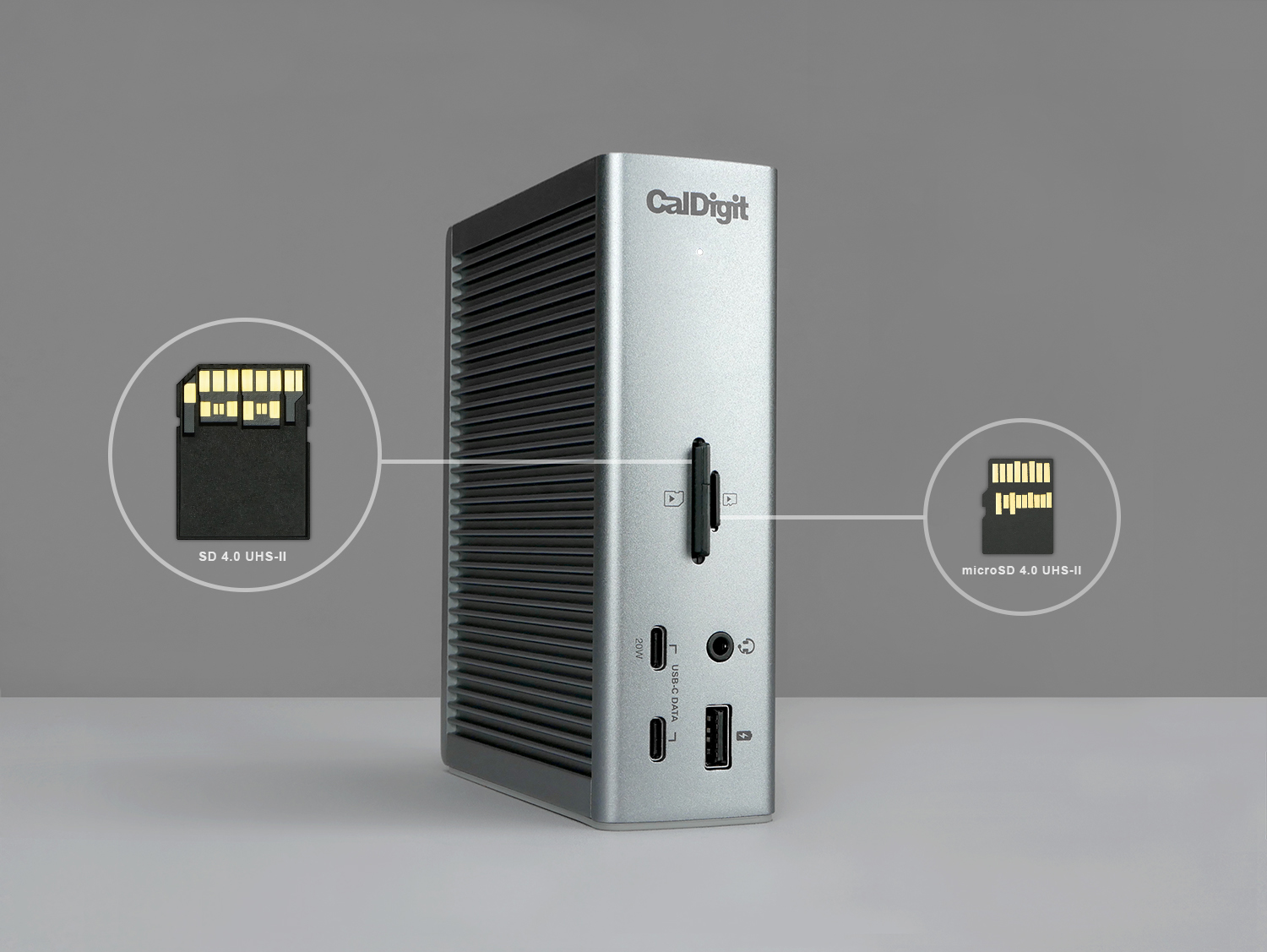 CalDigit TS4 CalDigit TS4 | Maximum I/O density (18 ports, 8x USB), great macOS polish. The king of ports. | $$$ | Amazon |
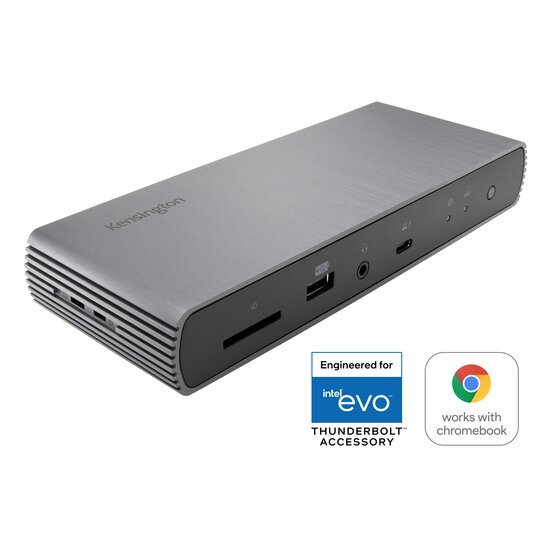 Kensington SD5700T Kensington SD5700T | Enterprise-grade security features (K-Slot), solid build, and excellent cross-platform compatibility. | $$ | Amazon |
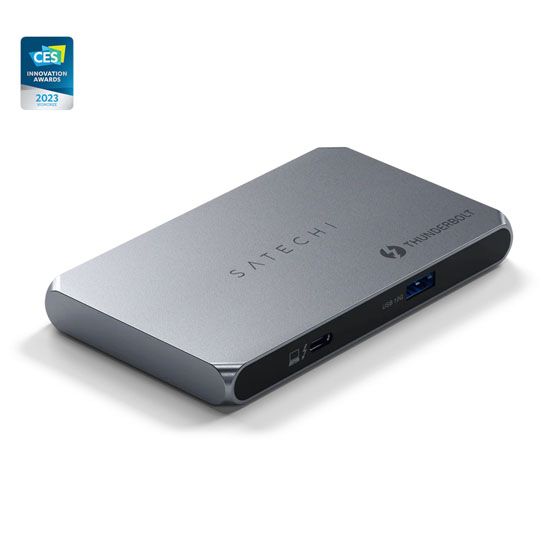 Satechi Thunderbolt 4 Dock Satechi Thunderbolt 4 Dock | Sleek aluminum design that perfectly complements Apple hardware, with a compact footprint. | $$$ | Amazon |
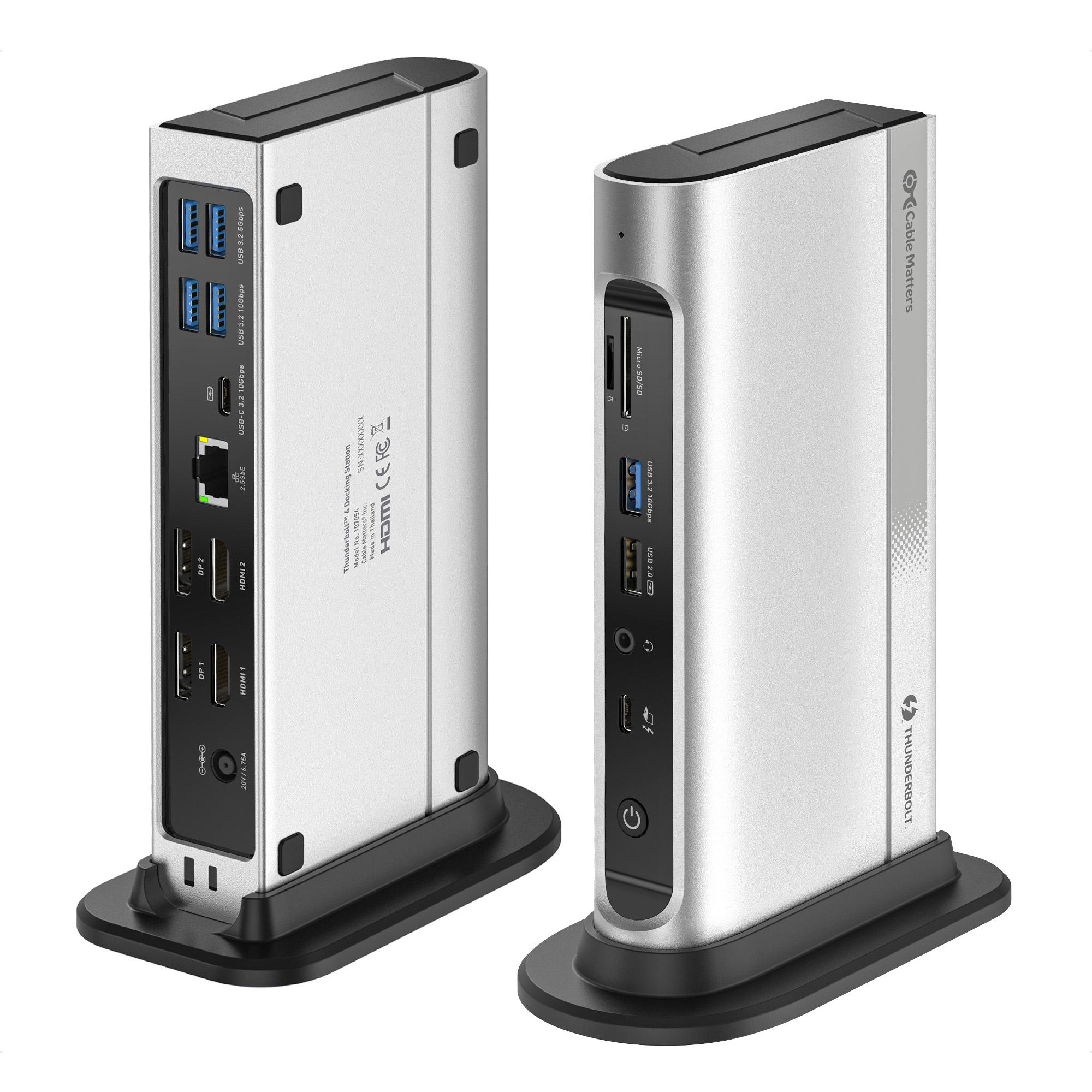 Plugable 16-in-1 Dock Plugable 16-in-1 Dock | Massive port selection (16 total) including dual HDMI and DP for maximum legacy display support. | $$ | Amazon |
How DeskZen Reviews
We don’t just read spec sheets. We curate and synthesize data from multiple expert benches and hundreds of verified owner reports, then validate everything on our own mixed-OS test desk. For docks, that means long-haul display uptime tests, dozens of sleep/wake cycles, hot-plug storms (unplugging and replugging devices rapidly), and sustained data transfers over Ethernet and USB while video calls are running—because that’s how they are used in real life.
- Primary sources: Manufacturer specs, Thunderbolt 4 compliance notes, and OS display pipeline documentation.
- Independent labs: Pro reviewers focused on connectivity stability, true throughput, and thermal performance under load.
- User feedback at scale: Aggregating owner reviews to surface edge cases with specific laptops, ultrawide monitors, or quirky OEM firmware.
We then distill all that noise into practical advice: which cable to use, which port to prefer for your fastest SSD, and what to expect from your specific laptop and monitor combination.
Users & Experts: What People Are Saying
Expert Roundups & Lab Tests
- Wirecutter — Best Thunderbolt Docks (Emphasizes reliability and display behavior)
- Windows Central — Best TB4 Docks (Notes on Windows compatibility)
- Digital Trends — Best Thunderbolt Docks (Focus on port selection)
Owner Feedback (Selected Sources)
- Amazon User Reviews (Real-world reports on multi-monitor stability)
- Apple Discussions (macOS sleep/wake behavior, cable tips)
We link directly so you can inspect the source claims, testing conditions, and the specific laptop/monitor combos referenced.
Final Verdict: A Dependable Anchor for Serious Desks
The Belkin Thunderbolt 4 Pro Dock doesn’t chase spec-sheet novelty. It focuses on the fundamentals that make or break a professional’s desk: predictable display links, consistent USB performance under extreme load, quiet thermals, and just-right power delivery. While other docks may offer more ports or slightly higher charging numbers, few can match the Belkin’s proven stability and “it just works” experience across both Mac and Windows platforms. If your day involves big timelines, big spreadsheets, or big code builds—and you want to invest in a single-cable solution that will not let you down—the Belkin TB4 Pro Dock is one of the safest and most reliable choices on the market today.
Frequently Asked Questions
Will this dock let my MacBook Air (M1/M2/M3) run two external monitors?
No, it will not. This is a very common point of confusion, but the limitation lies with the Mac, not the dock. The standard Apple M1, M2, and M3 chips only natively support one external display. To run two, you need a MacBook with an M-series Pro, Max, or Ultra chip. This Belkin dock uses the laptop’s native GPU capabilities, so it cannot bypass this hardware limitation.
Is 90W of power enough for my 16-inch MacBook Pro or Dell XPS?
For the vast majority of workflows, yes. 90W is sufficient to power and charge these demanding laptops during tasks like video editing, coding, and heavy multitasking. Only in extreme scenarios, such as running a maximum CPU and GPU render for an extended period, might you see the battery discharge very slowly. For all typical professional use, it’s the perfect amount of power.
Do I have to use the included cable? Can I use a longer one?
It is highly recommended to use the included certified Thunderbolt 4 cable for the connection between the dock and your laptop. This ensures you get the full 40 Gbps speed and 90W power delivery. If you need a longer cable, you must purchase another **certified Thunderbolt 4 cable**. Passive cables can work up to 0.8 meters; for longer distances (up to 2 meters), you will need a more expensive **active** Thunderbolt 4 cable.
What do I need to take advantage of the 2.5GbE Ethernet port?
To get speeds faster than the standard 1 Gigabit, your entire network chain must support it. This means you also need a router or switch with multi-gig ports (2.5GbE or 10GbE), and the device you are connecting to (like a Network Attached Storage – NAS) must also have a port of that speed. If your other hardware is 1GbE, the port will work perfectly but will be limited to 1GbE speed.
Why is this dock so much more expensive than a simple USB-C hub?
The difference is in capability, reliability, and certification. A Thunderbolt 4 dock guarantees a massive 40 Gbps of bandwidth, enabling it to run dual 4K 60Hz displays and high-speed data transfers simultaneously without compromise. A typical USB-C hub shares a much smaller bandwidth (usually 10 Gbps) across all its ports, so performance degrades quickly as you add devices. With a Thunderbolt dock, you are paying for certified hardware that delivers sustained, high-end performance.
My second monitor isn’t working or shows a low refresh rate. What should I check first?
Here is a quick troubleshooting checklist:
- Check the Cable: Ensure you are using certified Thunderbolt or USB-C DisplayPort Alt-Mode cables for your monitors.
- Check Your Laptop’s Specs: Verify that your specific laptop model supports two external displays over Thunderbolt. As mentioned above, some base-model Macs and certain Windows laptops do not.
- Update Drivers: For Windows users, make sure your graphics and Thunderbolt drivers are fully updated from your laptop manufacturer’s website.
- Swap Ports: Try connecting the problematic monitor to the other downstream Thunderbolt port on the dock to isolate the issue.

Leave a Reply