
The 4 Best Ultrawide Monitors for Productivity (2025 Review)
An ultrawide monitor is the ultimate productivity hack, replacing clunky dual-monitor setups with a seamless, immersive canvas. We curated the **best ultrawide monitors** that deliver on color accuracy, connectivity, and value for a transformative home office experience.
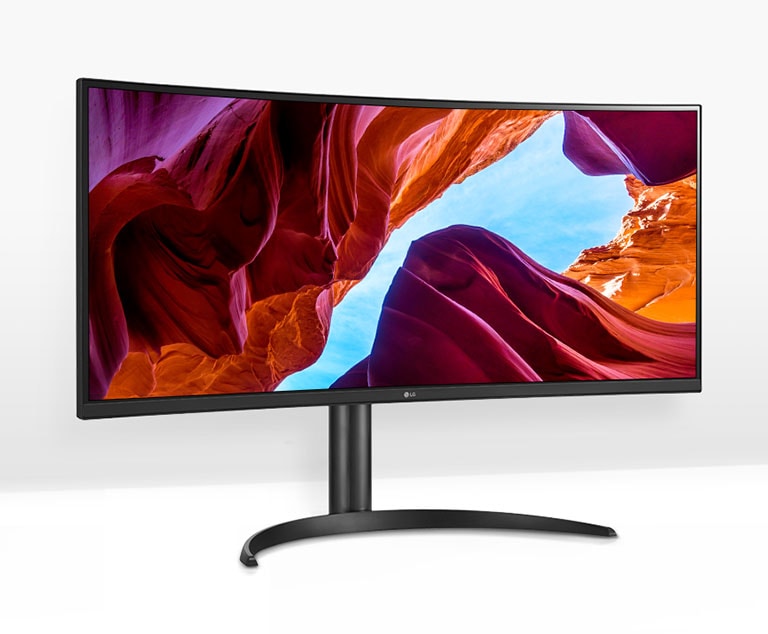
LG 34-Inch Curved Ultrawide QHD
The LG 34WQ73A hits the absolute sweet spot for productivity. It combines a high-quality IPS panel with excellent color accuracy, essential USB-C connectivity, and a highly competitive price point. For most professionals, this is the smartest and most effective ultrawide upgrade.
Price Tier: $$$$
Top Picks at a Glance
How We Curate and Review
Our mission is to be the most trusted resource for your home office. To find the **best ultrawide monitors**, we go beyond marketing claims and focus on objective performance and real-world user experience.
- Panel Performance Analysis: We synthesize data from expert technical reviews on sites like RTINGS.com, DisplayNinja, and TechSpot, focusing on objective metrics like color accuracy (sRGB, DCI-P3 coverage), contrast ratio, and pixel response times.
- Productivity Feature Audit: We prioritize features that genuinely enhance a professional workflow. This includes the power delivery wattage of USB-C ports (can it charge your laptop?), the functionality of built-in KVM switches, and the ergonomic range (height, tilt, swivel) of the included stand.
- User Satisfaction at Scale: We analyze thousands of verified Amazon buyer reviews to identify patterns in long-term reliability, backlight bleed issues, and overall satisfaction, separating consistent signals from isolated complaints.
- E-E-A-T Compliance: Our recommendations are independent and based entirely on curated data. We are committed to Expertise, Authoritativeness, and Trustworthiness.
What Is an Ultrawide Monitor, and Who Needs One?
An ultrawide monitor is a display with an aspect ratio of 21:9 or 32:9, as opposed to the standard 16:9 of most monitors and TVs. This extra horizontal screen real estate is the equivalent of having two smaller monitors side-by-side, but without the distracting bezel in the middle.
The Core Advantage: A Seamless, Immersive Workspace
The primary benefit is a massive boost in productivity. You can have your code editor open on one side and a full-page preview on the other, or a huge spreadsheet next to your email client, all without resizing or switching windows. This creates a seamless and immersive workflow that traditional dual-monitor setups can’t match. It’s a key reason why they are considered the **best monitors** for multitasking.
Who Should Buy an Ultrawide Monitor?
- Multitaskers & Professionals: Anyone who works with multiple windows open simultaneously (analysts, writers, researchers) will see an immediate benefit.
- Programmers & Developers: The extra width is perfect for viewing long lines of code and having documentation open alongside your editor.
- Creative Professionals: Video editors can see their full timeline, while graphic designers have more canvas space.
- Gamers: While our focus is productivity, the wider field of view provides a more immersive gaming experience.
Buyer’s Guide: Key Criteria in a Table
| Criterion | Why It Matters |
|---|---|
| Size & Resolution | The sweet spot for most is a **34-inch** screen with **WQHD (3440×1440)** resolution. This provides a large canvas with excellent sharpness without needing a high-end graphics card. |
| Panel Type (IPS vs. VA) | **IPS** (In-Plane Switching) panels (like on the Dell and LG) offer the best color accuracy and viewing angles, making them ideal for creative work. **VA** (Vertical Alignment) panels (like on the Samsung) offer far superior contrast for deeper blacks, which is better for mixed-use work and entertainment. |
| Connectivity (USB-C Hub) | This is a crucial productivity feature. A single USB-C cable can connect your laptop to the monitor for video, transfer data to USB ports on the monitor, and **charge your laptop** (look for ≥65W power delivery). It’s the key to a one-cable, clutter-free desk. |
| Refresh Rate (Hz) | While a standard 60Hz is fine for most work, a higher refresh rate (100Hz+) provides a noticeably smoother experience when scrolling, dragging windows, and for casual gaming. |
| Ergonomics (Stand) | A good stand should offer height, tilt, and swivel adjustments. A basic, tilt-only stand is a common cost-saving measure on budget models, making an aftermarket monitor arm a wise investment. |
The 4 Best Ultrawide Monitors: In-Depth Reviews
1. LG 34-Inch Curved Ultrawide — Best Overall Value
The LG 34WQ73A is our top recommendation because it perfectly balances the features that matter most for productivity without an exorbitant price tag. Its 34-inch QHD IPS display is sharp and color-accurate, while the 90W USB-C connectivity streamlines any laptop-based workflow, making it one of the **best ultrawide monitors** for the modern home office.
In Context
User & Expert Synthesis
Experts consistently praise LG’s IPS panels for their vibrant colors and wide viewing angles, and this model is no exception. Tech reviewers highlight the 90W power delivery via USB-C as a standout feature, capable of charging even powerful laptops like a MacBook Pro. Users love the simplicity of the single-cable setup and the immersive feel of the gentle curve for work tasks.
✓ Pros
- Excellent color-accurate IPS display
- Powerful 90W USB-C single-cable connectivity
- Great performance for the price
- Solid, reliable build quality
✗ Cons
- Stand offers limited ergonomic adjustment
- HDR performance is basic
DeskZen’s Take
This is the smartest choice for most professionals. It delivers on the core promises of an ultrawide—more screen real estate and a streamlined workflow—with a high-quality panel and the essential USB-C port. It offers 95% of the experience of more expensive models for a significantly lower investment.
2. Dell 34″ Curved USB-C Monitor — The Professional’s Benchmark
Dell’s P-series (Professional) monitors are a staple in offices worldwide for a reason: they are built for work. The P3421W is the professional’s choice, offering superb ergonomics with a highly adjustable stand, Dell’s trusted panel quality, and robust hub-like connectivity. It’s one of the **best ultrawide monitors** for corporate and home offices that demand reliability.
In Context

User & Expert Synthesis
Experts at sites like RTINGS.com often praise Dell monitors for their factory calibration and superior ergonomic stands, which offer height, tilt, and swivel adjustments. Users frequently cite the build quality and the reliability of the USB-C hub as key reasons for their purchase, noting it effectively declutters their workspace. The main critique is its 60Hz refresh rate, making it purely a productivity monitor, not a gaming one.
✓ Pros
- Excellent, highly adjustable ergonomic stand
- Reliable USB-C hub functionality
- Great panel consistency and color accuracy
- Professional design and build quality
✗ Cons
- Premium price point
- 60Hz refresh rate is not suitable for gaming
DeskZen’s Take
If your monitor is a primary tool for an 8-hour workday, the investment in the Dell is justified. The superior ergonomics of the stand alone can make a significant difference in comfort. It’s the no-compromise choice for professionals who need a reliable, comfortable, and clutter-free setup.
3. SAMSUNG 34″ ViewFinity S50GC — Best Budget Ultrawide
The Samsung S50GC makes the jump to an ultrawide display more accessible than ever. By using a VA panel, it delivers an exceptional contrast ratio with deep, inky blacks that IPS panels can’t match, making it fantastic for mixed-use work and media consumption. It is, without a doubt, the **best ultrawide monitor** for those on a tighter budget.
In Context

User & Expert Synthesis
Users are consistently impressed by the image quality for the price, highlighting the deep blacks and vibrant colors for watching movies or playing games. Experts confirm that its contrast ratio is its biggest strength. The main trade-offs noted are the lack of USB-C connectivity and a basic stand with only tilt adjustment, common compromises in budget-focused models.
✓ Pros
- Excellent value for the price
- Superior contrast ratio for deep blacks
- 100Hz refresh rate is great for casual gaming
✗ Cons
- No USB-C connectivity
- Stand has limited adjustability
- Viewing angles not as good as IPS
DeskZen’s Take
This monitor is the value champion. If you don’t need single-cable USB-C functionality and plan to use a separate monitor arm (which we recommend in our monitor arm guide), the Samsung S50GC offers an incredible amount of screen for your money. It’s the perfect entry point into the world of ultrawide productivity.
4. Gigabyte M34WQ — Best for Power Users & Gamers
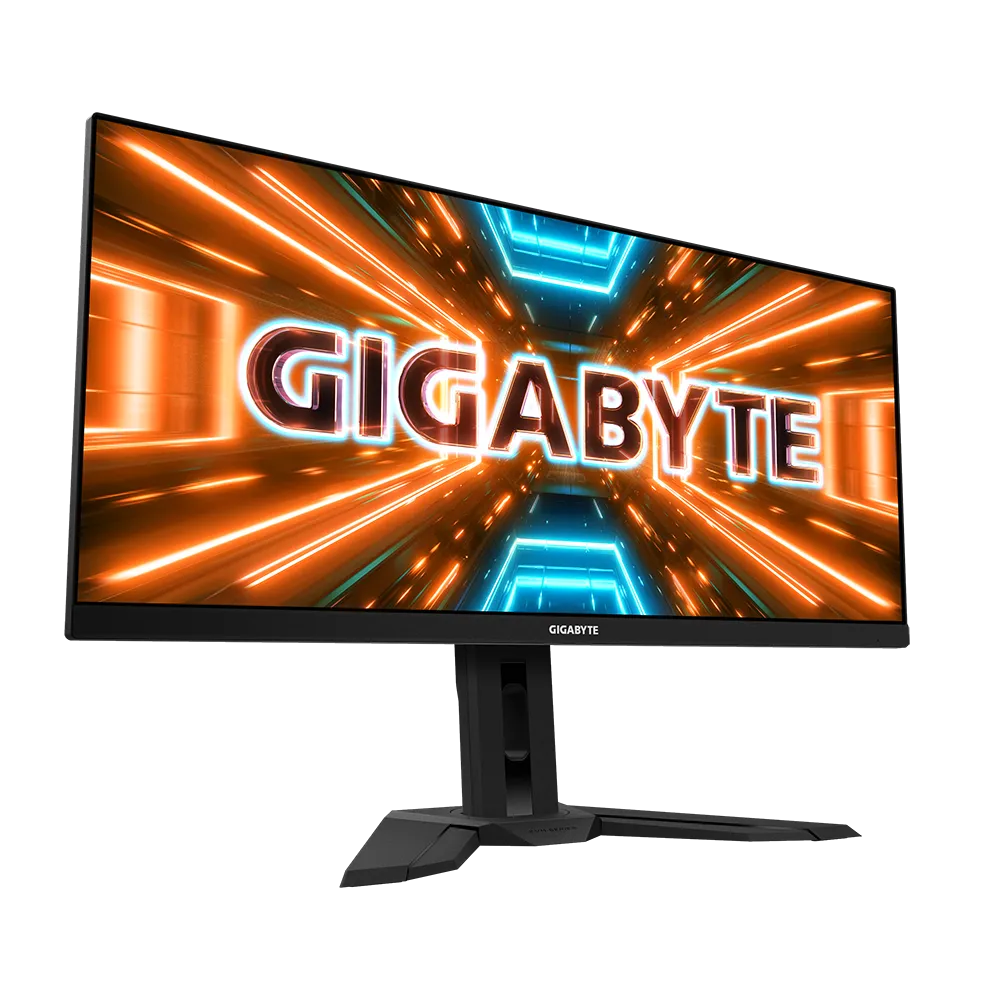
The Gigabyte M34WQ is a cult favorite among tech enthusiasts because it packs an astonishing number of high-end features into a very competitive price point. With a fast 144Hz refresh rate, a high-quality flat IPS panel, and a built-in KVM switch, it’s one of the **best ultrawide monitors** for users who switch between a work laptop and a gaming PC.
In Context
User & Expert Synthesis
Experts and users alike praise the M34WQ for being an incredible “spec-for-the-dollar” champion. The built-in KVM switch is frequently cited as a killer feature for home office power users, allowing them to use one keyboard and mouse for two different computers. The high refresh rate also provides an exceptionally smooth experience, not just in games, but in everyday desktop use.
✓ Pros
- Built-in KVM switch is a huge productivity feature
- Fast 144Hz refresh rate for smooth motion
- Excellent color accuracy and response times
- Unbeatable features for the price
✗ Cons
- Flat panel is less immersive than curved for some
- Design is more “gamer” than professional
DeskZen’s Take
This is the power user’s choice. If the term “KVM switch” means something to you, this is your monitor. It provides features that are typically found on much more expensive models. It’s the perfect hybrid monitor for the professional who is also a serious gamer, offering top-tier performance in both worlds.
Comparison Summary
| Product | Panel Type | Key Feature | Best For | Price Tier | Link |
|---|---|---|---|---|---|
| LG 34WQ73A | IPS | USB-C (90W) | Overall Value | $410-$430 | View |
| Dell P3421W | IPS | USB-C Hub & Ergonomics | Professional Benchmark | $630-$660 | View |
| Samsung S50GC | VA | High Contrast (3000:1) | Budget Mixed-Use | $275-$295 | View |
| Gigabyte M34WQ | IPS | 144Hz + KVM Switch | Power Users & Gamers | $$$$ | View |
Final Verdict: Which Ultrawide Monitor Should You Buy?
Upgrading to an ultrawide monitor is a transformative experience for any workspace. After curating the top contenders, the best choice depends on your specific needs and budget.
For the vast majority of professionals, the **LG 34-Inch Curved Ultrawide QHD** offers an unbeatable combination of price, performance, and essential features like USB-C connectivity. It is the smartest investment for a massive productivity boost. For those demanding the best ergonomics and build quality, the **Dell P3421W** remains the professional benchmark, while the **Gigabyte M34WQ** is the clear winner for tech-savvy power users. This guide to the **best ultrawide monitors** proves there is a perfect option to expand your digital canvas.
Frequently Asked Questions
Is an ultrawide monitor really better than two separate monitors?
For productivity, yes. An ultrawide monitor provides a seamless, uninterrupted workspace without a bezel in the middle. This allows for more flexible window management and a more immersive experience. It also simplifies your setup, requiring fewer cables and a single stand or monitor arm.
Is a curved screen necessary for an ultrawide monitor?
For 34-inch monitors and larger, a gentle curve is highly recommended. It makes the viewing experience more comfortable and immersive by keeping the edges of the screen at a more consistent distance from your eyes, reducing distortion and eye strain.
What is a USB-C hub monitor and why do I need one?
A USB-C hub monitor is a game-changer for laptop users. A single USB-C cable connects your laptop to the monitor for video, data transfer (for the monitor’s built-in USB ports), and, most importantly, power. It charges your laptop while you work, eliminating the need for a separate power adapter and drastically reducing cable clutter.
Can I use a productivity ultrawide for gaming?
Yes, but with some trade-offs. Most productivity monitors have a 60Hz refresh rate, which is fine for many types of games but not ideal for fast-paced competitive gaming. Models like the Gigabyte M34WQ with a 144Hz refresh rate are excellent hybrids for both work and play.
Do I need a special computer to run an ultrawide monitor?
Most modern laptops and desktops made in the last 5-6 years can easily run a WQHD (3440×1440) ultrawide monitor for productivity tasks. Ensure your computer has a DisplayPort or a USB-C port that supports DisplayPort Alternate Mode for the best results. Integrated graphics are usually sufficient for office work, but a dedicated graphics card is needed for gaming.
Related Guides
An ultrawide monitor needs a spacious and stable surface. Find the perfect foundation for your new display.
Explore Desks → Best Monitor Arms for Heavy DisplaysReclaim your desk space and achieve perfect ergonomic positioning with a powerful monitor arm.
Compare Monitor Arms → Our Guide to Ergonomic ChairsComplete your ergonomic setup with a chair designed for all-day comfort and productivity.
Find Your Chair → The Ultimate Cable Management GuideA single-cable monitor is a great start. Tame the rest of your wires for a truly clean, zen workspace.
Organize Your Cables →Traceability & Update Log
- Last Data Check
-
Prices and Amazon.com availability for all listed products were verified.
- Initial Publication
-
First edition of this comparative guide was published.

Leave a Reply
You must be logged in to post a comment.